Ok, there are some fabulous blog-posts out there on how to install SharePoint 2013 (preview). One thing most of them are missing though: the fact that your (production) servers don't have internet connection. Articles from Microsoft like these
Link are helpful but not complete. To reflect this situation I decided to create a VM with no internet connection and install SharePoint 2013.
This changes the game a bit; I recommend putting on some nice relaxed music like EC 'Old Love'
Link which gives you about 8:45 minutes & read trough this blog post to prevent some hassles.
Step 1; download SharePoint 2013
http://technet.microsoft.com/en-us/evalcenter/hh973397.aspx
(2.2 GB of binaries but
NO PREREQUISITES !!!)
Step 2: Write down the product key:
6RNT8-XV26M-GWH36-VMGQH-94MMH
Step 3: This is a .img file, my Oracle Virtual Box can't read these.
Solution, using Virtual Clone Drive to mount the .img & then add a virtual drive to the virtual clone drive drive in virtual box, giving the VM access to the SharePoint 2013 goodies.
Step 4: Download the prerequisites.
A nice overview can be found here:
http://blogs.msdn.com/b/ocarpen/archive/2012/07/31/sharepoint-2013-preview-pre-requisites-download-links.aspx?CommentPosted=true#commentmessage
Thanks Oliver
Step 5: Deal with the prerequisites issues.
First I thought I could just run each .msi / .exe by hand.. this does not work.
You will have to run the prerequisites installer from the (admin) command prompt to install all prerequisites step by step:
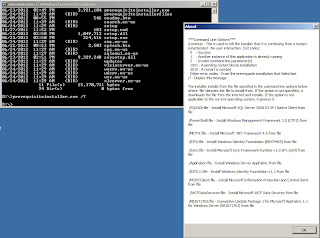

1) Microsoft .NET Framework 4.5
Link
prerequisiteinstaller.exe /NETFX:dotNetFx45_Full_x86_x64.exe
2) Windows Management Framework 3.0 (CTP2)
Link
prerequisiteinstaller.exe /PowerShell:Windows6.1-KB974405-x64.msu
3) Microsoft SQL Server 2008 r2 Native Client
Link
Sqlncli.msi
prerequisiteinstaller.exe /SQLNCli:Sqlncli.msi
4) Windows Identity Foundation (KB974405)
Link
Windows6.1-KB974405-x64.msu
prerequisiteinstaller.exe /
5) Microsoft Sync Framework Runtime v1.0 SP1 (x64)
Link
Synchronization.msi
prerequisiteinstaller.exe /
6) Windows Server AppFabric
Link
prerequisiteinstaller.exe /AppFabric:windowsServerAppFabricSetup_x64.exe
7) CU Package 1 for Microsoft AppFabric 1.1 for Windows Server (KB2671763)
Link
Manually installed (executed .exe)
8) Windows Identity Extensions
Link
MicrosoftIdentityExtensions-64.msi
prerequisiteinstaller.exe
9) Microsoft Information Protection and Control Client
Link
setup_msipc_x64.msi
prerequisiteinstaller.exe /MSIPCClient:setup_msipc_x64.msi
10) Microsoft WCF Data Services 5.0
Link
You have to run: the trusted root certificate update program before this step; then execute the install
X86-all-rootsupd_90f0b77f9f5fbe6c5227f3fac95c926087f53fce.exe
Before Installing, Update for Root Certificates For Windows Server 2008 [April 2012] (KB931125)
WcfDataServices.exe
prerequisiteinstaller.exe /WCFDataServices:WcfDataServices.exe
Step6: WcfDDataServices
The WcfDDataServices comes with it's own problem. It needs a trusted root certificate which the installer can't download from the web. So you need to do it for it.
This can be done by doing a 'search' on 'root update' at the Microsoft update center:
http://catalog.update.microsoft.com/v7/site/Search.aspx?q=root%20update
There you can download the Update for Root Certificates For Windows Server 2008 [April 2012] (KB931125).
Install the file (it doesn't give you any clue if it succeeded), after that you can run the prerequisiteinstaller.exe /WCFDataServices:WcfDataServices.exe command and this install will succeed.
Step 7: Download Service Pack 1 For SQL Server 2008R2
Yep, it's time to upgrade that SQL !
Link
Step 8: Ready to install!!
Yep, now you're all ready & set to install the actual SharePoint 2013 binaries !
You can follow some setup guidance available by great other bloggers like:
Eric Harlan
Step 9: Oh, it seems there are some more prerequisites to install, to prevent problems with your Search Service Application later
http://support.microsoft.com/kb/2554876
http://support.microsoft.com/kb/2708075
http://support.microsoft.com/kb/2472264


