Showing posts with label Virtual Lab. Show all posts

Sunday, November 21, 2010

TechNet Virtual Lab: SharePoint RTM - IT PRO - Service Applications

Objectives
This lab’s objective is to gain familiarity with

- Configure the new Managed Metadata Service Application
- Associate the Managed Metadata Service Application with a Web Application
- Manage the Metadata Service by adding your own custom Groups and Term Sets
- Import a group into the Enterprise Term Store within the Metadata Service
- Utilize the Managed Metadata Service Application within a list
- Configure My Site settings
- Create a My Site


Adding, Configuring, and Consuming the Managed Metadata Service Application

Scenario
In this exercise you will add, configure, and consume the managed metadata service application

Task 1: Creating a New Managed Metadata Service Application

Lol @ welcome message:


Creating a new managed meta service:


Cewl new features:
- choose failover database
- choose content hub website (Enter the URL of the site collection (Content Type hub) from which this service application will consume content types.)

Task 2: Managing the Metadata Service


Lol @ Do not click the link itself but anywhere in the row to select it ...nice UI !!

Creating Groups, Term Sets, Terms
Task 3: Adding a Group by Importing it
(importing a CSV, easy peasy)

Task 4: Consuming the Terms from a List


Hmm missing some interface options.. this doesn't look like:


Maybe it's because of the very small screen... (which I can't get any bigger).

Solution: press the manage views icon first, create column will come after that.


Selecting the managed metadata as column type


Selecting the pre-defined enterprise values


Review People Configuration and My Sites

Scenario
In this exercise you will add, configure, and consume the managed metadata service application


Task 1: Review People configuration


Task 2: Configure My Sites


While reviewing this screen, you will notice that when the Farm Configuration Wizard created the People Service Application, it configured the http://intranet.contoso.com Web Application to host My Sites. The My Site Host site collection was created at http://intranet.contoso.com:80/my, and the My Sites will be hosted under the managed path “my/personal.” The only thing left is to confirm that Self Service Site Creation is on.


10. In the Ribbon, click Self-Service Site Creation.
(!this is under the SECURITY icon)

! Clicking on the 'my content' link is a challange; as this is white.. but just click behind the my newsfeed link and it will open the screen below)


(this 'my content' link isn't shown:)


my profile:


Nice 'twitter' integration ?? :)

Task 3: Conclusion

In this lab you spent some time learning how to use and configure the new Managed Metadata Service, as well as configure My Site creation options. You should now be able to…
- Create a new Managed Metadata Service Application (MMSA)
- Associate the Service Application with the Portal Web Application
-Manage the Metadata Service, add a group by import, and consuming the terms from within a list
- Configure My Site creation settings for domain users
- Create a My Site

For more information on SharePoint Server 2010, visit the SharePoint Products and Technologies team blog at http://blogs.msdn.com/sharepoint for regular announcements and updates.

TechNet Virtual Lab: SharePoint RTM - IT PRO - Upgrade

Lab Source: http://technet.microsoft.com/en-us/bb512933.aspx

Tasks:
- Verify existing 2010 farm readiness to upgrade specific content databases using the 2010 Test-SPContentDatabase cmdlet.
- Initiate upgrade for individual content datbases using the 2010 STSADM –o addcontentdb command.
- Review the upgrade session status using the improved Central Administration web site Upgrade Status page.
- Initiate upgrade for multiple individual content databases using multiple PowerShell sessions to trigger parallel upgrade sessions.
- Troubleshoot an upgrade failure due to missing features, and how to restart upgrade for individual content database
- Use visual upgrade features to switch sites from the 2007 product look and feel to the new 2010 product user interface.

The Test-SPContentDatabase cmdlet generates a nice report with all possible technical flaws for converting the 2007 SharePoint content database to SharePoint 2010.

Task 2: Create a new Web Application for Restore
Central admin ->manage web applications
In the ribbon, click new icon at the left, a Create new web application window will open.
(creating new web application in SharePoint 2010) (which takes like forever !!)

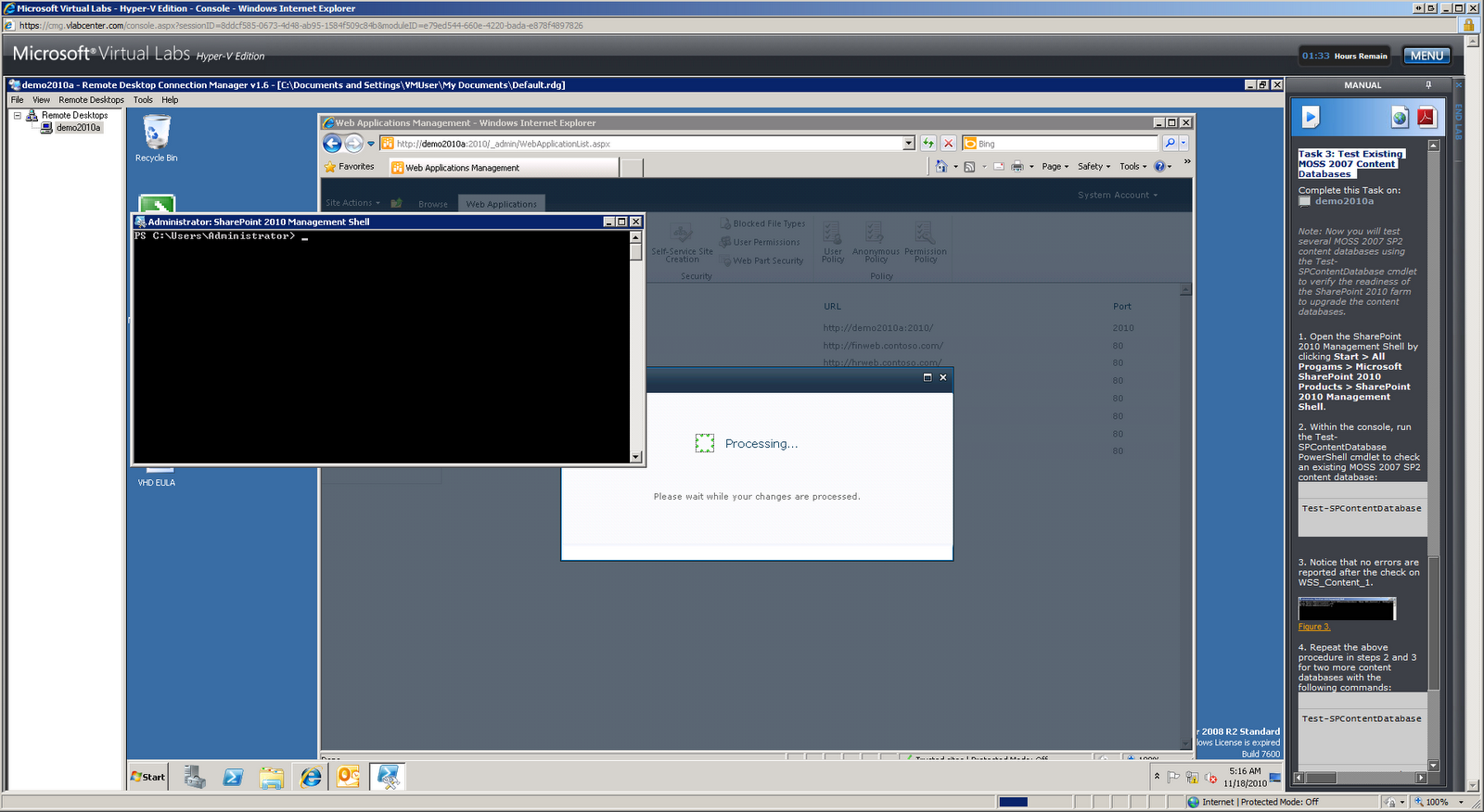
Task 3: Test Existing MOSS 2007 Content Databases


Testing:
(From Sharepoint2010 Management Shell)
Test-SPContentDatabase -Name WSS_Content_1 -WebApplication http://moss.contoso.com

(Gives a dos-box with all problems and solutions)


Exercise 2 - Gain Upgrade System Familiarity
(which turns out to be running just 1 command line in dos box, very simple actually !)

Task 2: Upgrade Two Content Databases at the Same Time
4. Wait for both command windows to close before continuing. Each window will close automatically. It is normal for one window to close before the other. This script may take approximately 5 to 8 minutes to complete. Progress can also be monitored in each of the command windows opened.
(it takes a while :P P)

Exercise 3 - Troubleshoot Upgrade Failures and Resume Upgrade

Scenario
In this exercise you will troubleshoot an upgrade issue by reviewing the upgrade log and then installing a missing solution and restarting upgrade from the command line.


Task 1: Open Failed Upgrade Log

Task 2: Find Errors in the Upgrade Log
(Opening logfile with notepad (copy & paste)..)

Task 3: Install Missing Solutions and Features
! .ps1 file is not in the F40 folder but 1 folder higher.

oops… doesn’t work..


Exercise 4 - Explore Visual Upgrade Features

5. Look at the page, noting that the user interface is still using the MOSS 2007 look and feel. The content database that contains this site collection was initially attached and upgraded with the -PreserveOldUserExperience option set to true, which is the default behavior.

Old interface takes forever to load..
Finally results into ‘An unexpected error has occurred.’


Task 3: Use the Visual Upgrade Preview

(still waiting for the old interface).
. In this lab, you learned how to…
• Verify existing 2007 farm and content upgrade readiness through the use of the 2007 pre-upgrade checker command.
• Verify existing 2010 farm readiness to upgrade specific content databases using the 2010 Test-SPContentDatabase cmdlet.
• Initiate upgrade for individual content databases using the 2010 STSADM –o addcontentdb command.
• Review the upgrade session status using the improved Central Administration web site Upgrade Status page.
• Initiate upgrade for multiple individual content databases using multiple PowerShell sessions to trigger parallel upgrade sessions.
• Troubleshoot an upgrade failure due to missing features, and how to restart upgrade for individual content database.
• Use Visual Upgrade features to switch sites from the 2007 product look and feel to the new 2010 product user interface.